
The Mac app for Muse Code
Hand Muse Wonder a fix, a feature or a refactor. Watch it work, steer it mid-turn, and review every change before it lands.
Free for Apple Silicon Macs on macOS 27. Uses your own Muse Code plan.

Give it the whole job
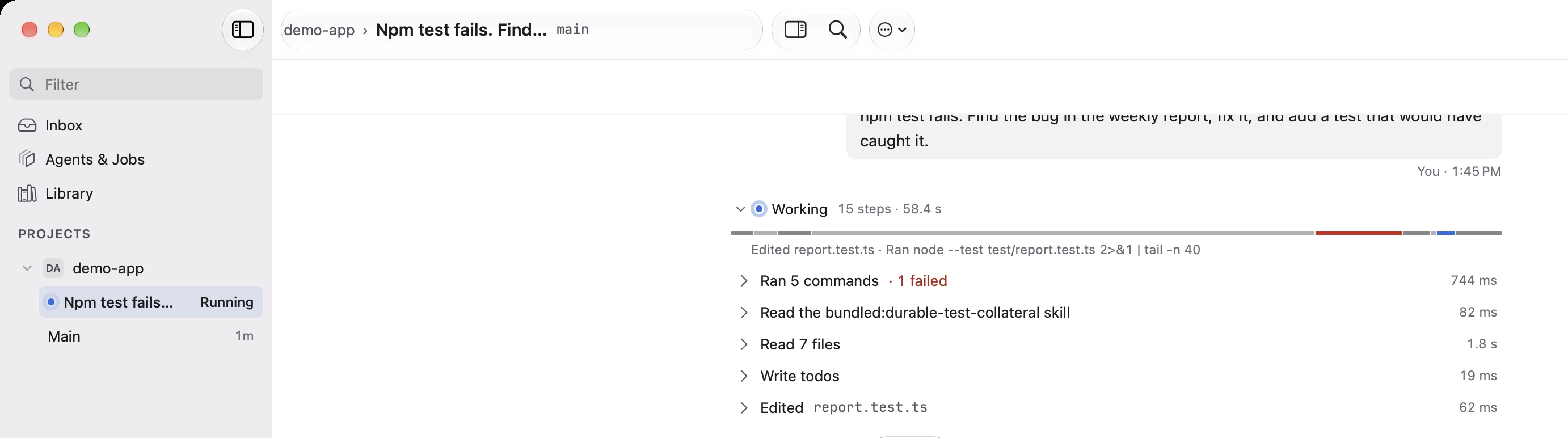
A bug you’ve been putting off
Describe what’s wrong or paste the error. Muse traces the cause, makes the fix and can run your tests. You read the diff before you keep it.
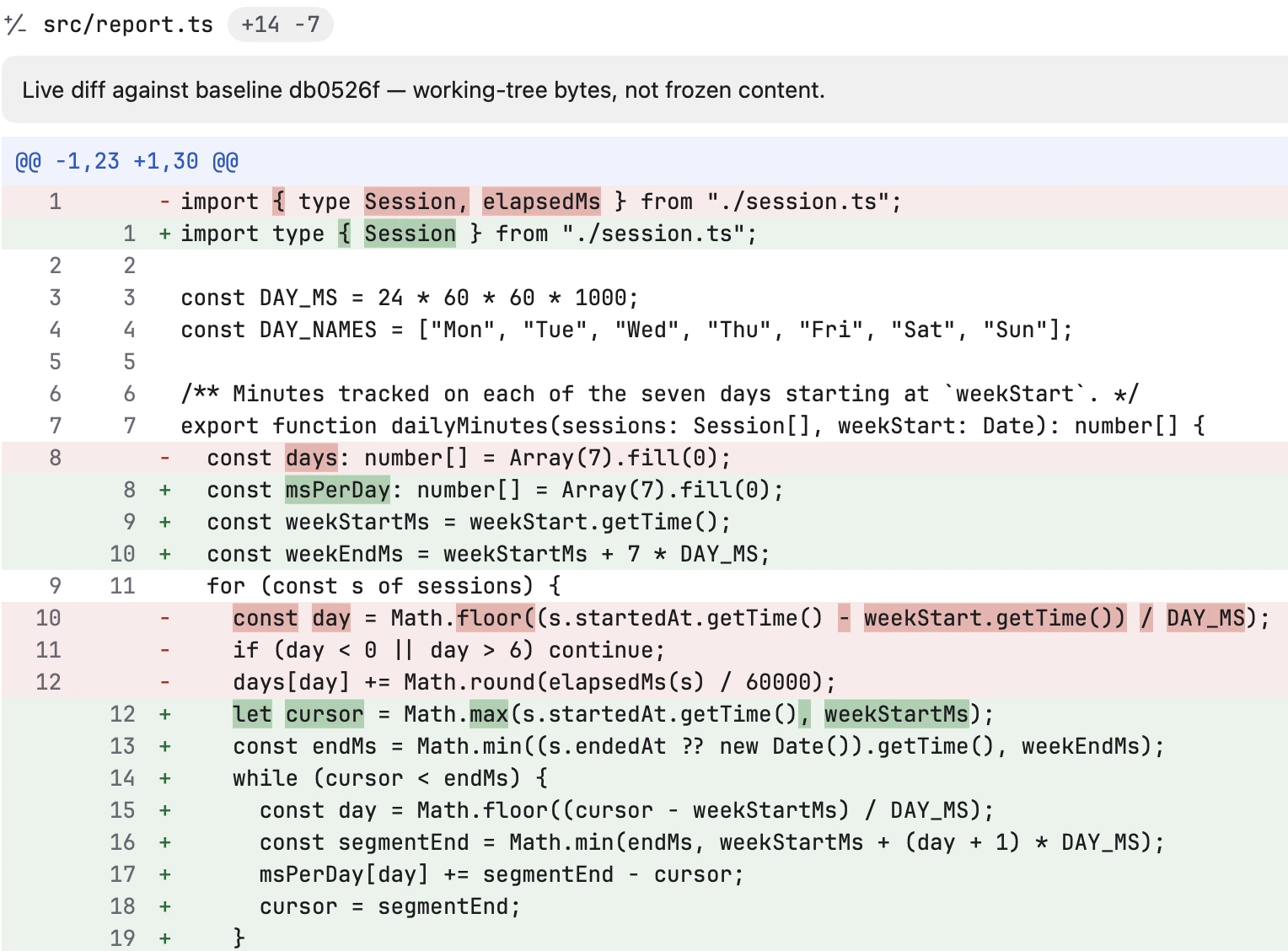
A feature, planned first
Switch to Plan and Muse reads the project without changing it, then writes out the approach, the steps and how to check the work. Approve the plan and it builds it.
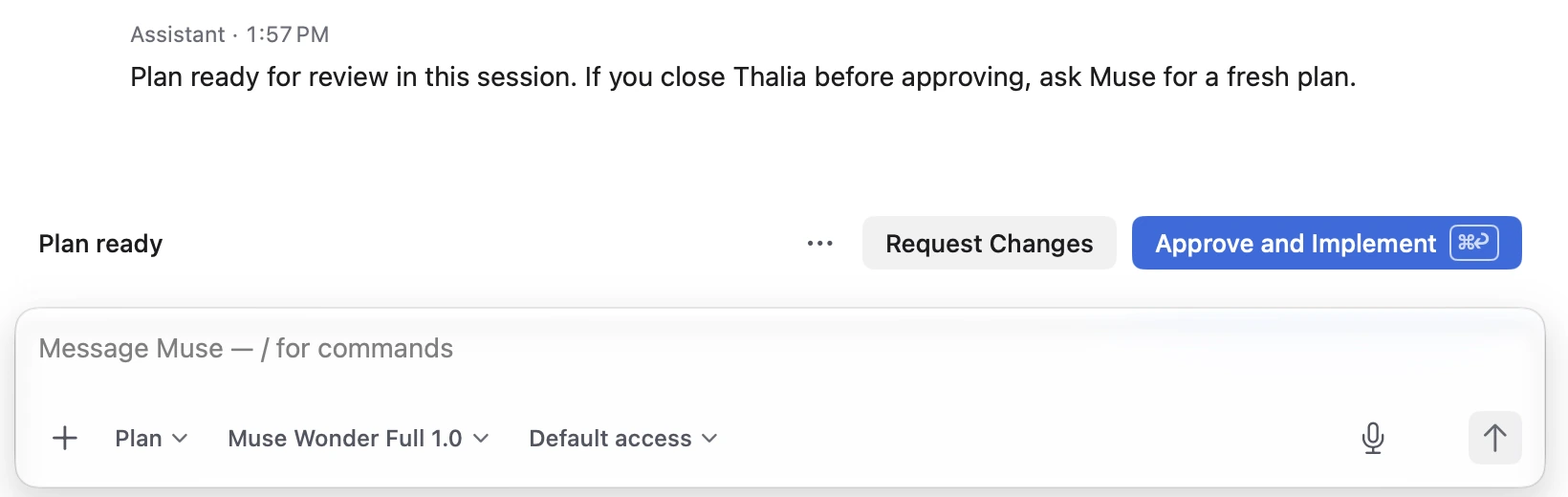
A change across many files
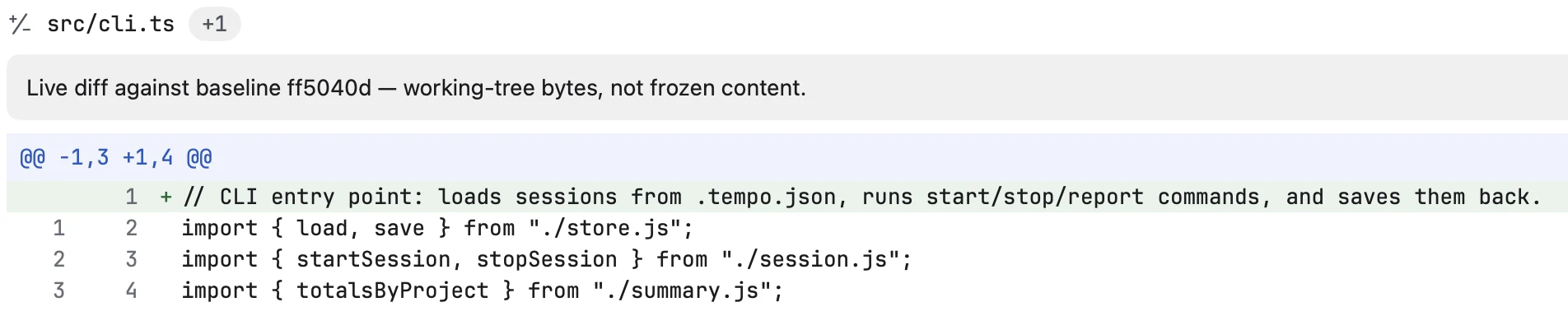
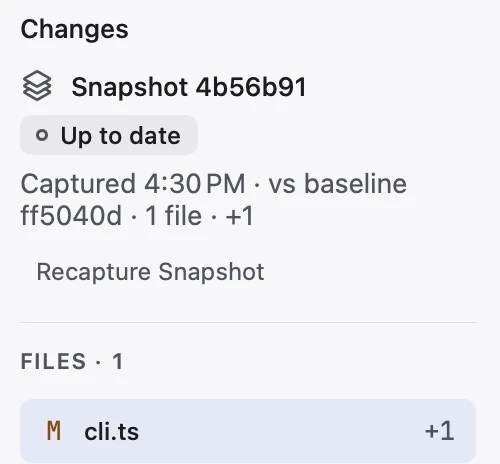
Renames, migrations, cleanups. Review lists every file Muse touched against where your project started, new files included, so nothing slips in unseen.
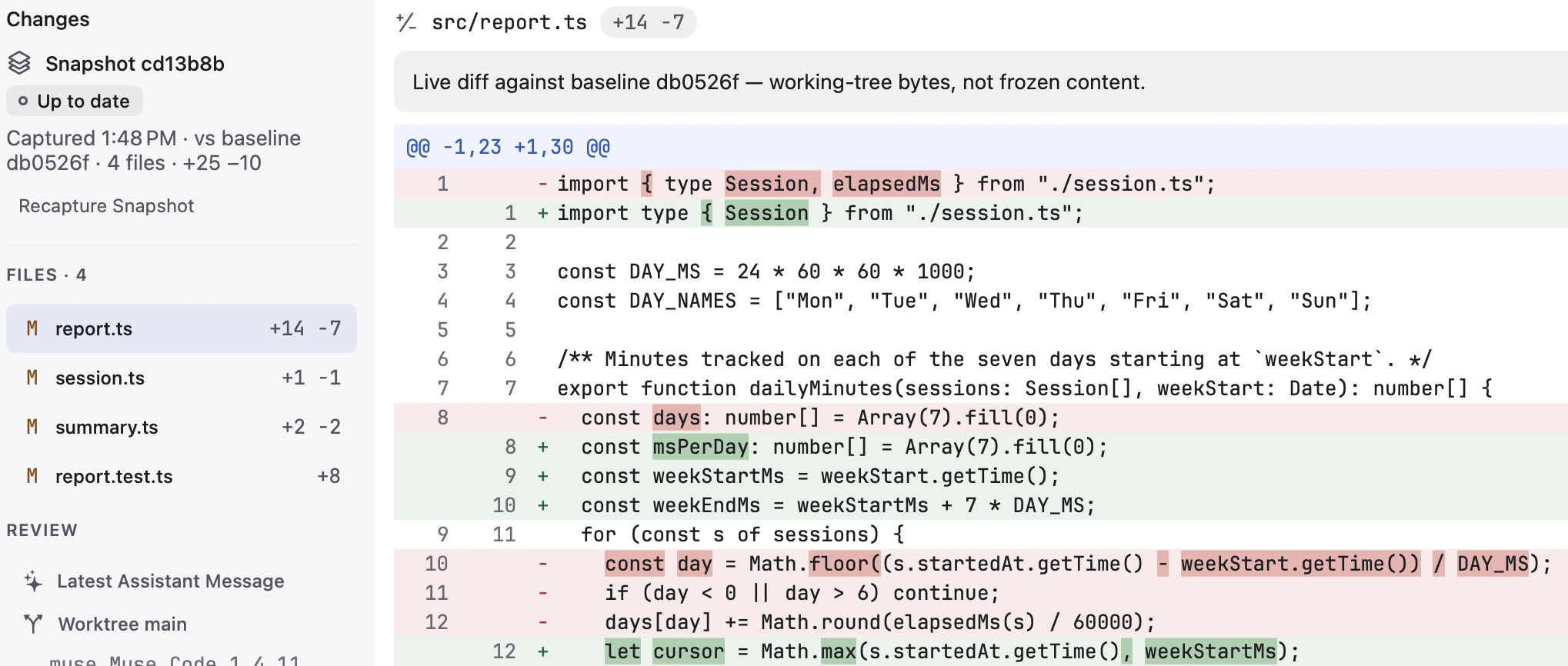
Muse Wonder, and every other model on your plan
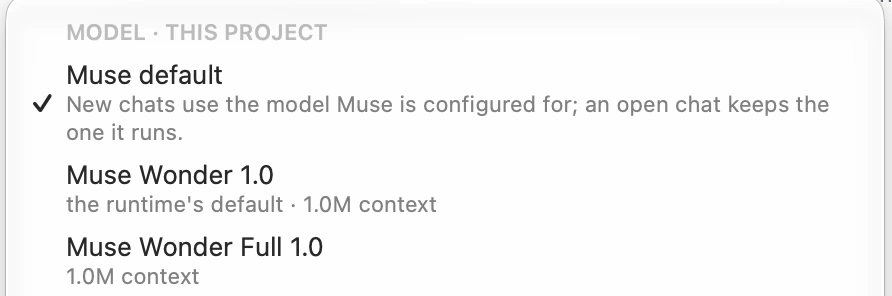
The model picker shows what your Muse Code plan includes: Muse Wonder, and Muse Wonder Full on the plans that have it. Choose per chat or per project. The Effort menu only offers levels that model actually supports, so what you pick is what runs.
Every job in its own chat
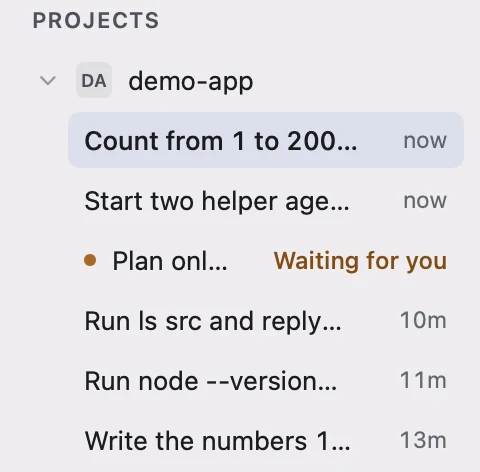
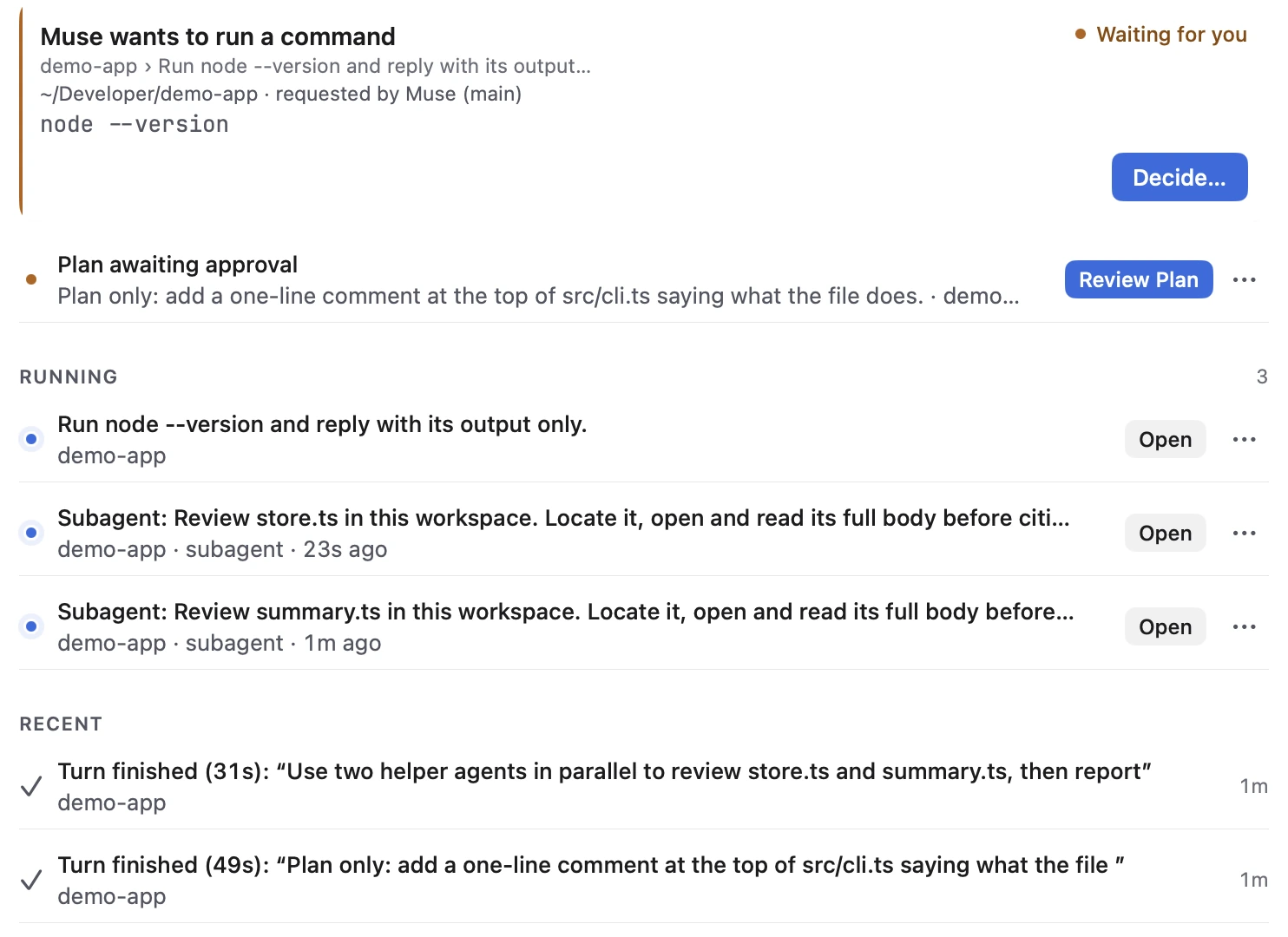
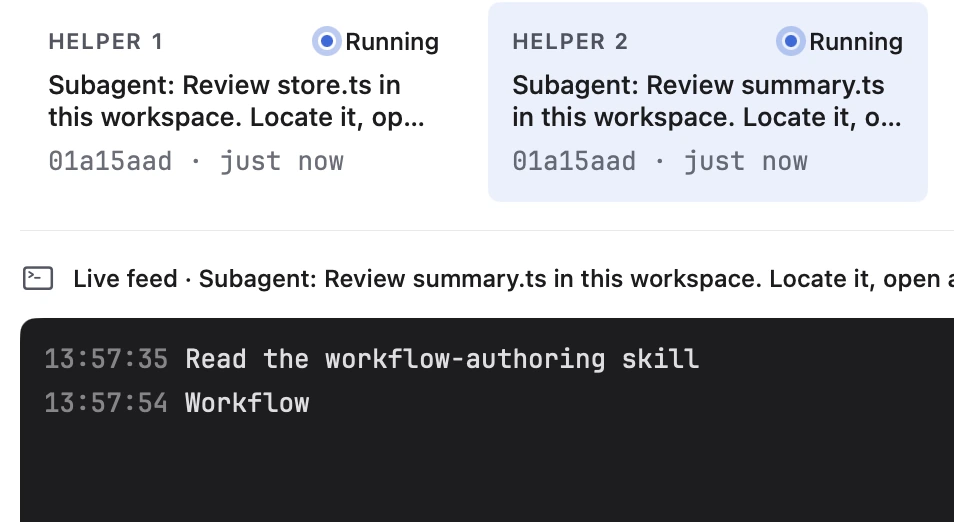
Start a chat with or without a project, and keep your work tidy with sidebar sections and project groups. If Muse is busy in another chat, your next draft waits until it’s free. Inside a job, Muse can hand parts to helper agents that run side by side, and you can follow each one. The Inbox gathers what’s waiting on you, from a command to allow to a plan to approve, next to what’s running and what just finished.
You decide what lands
Before a command runs
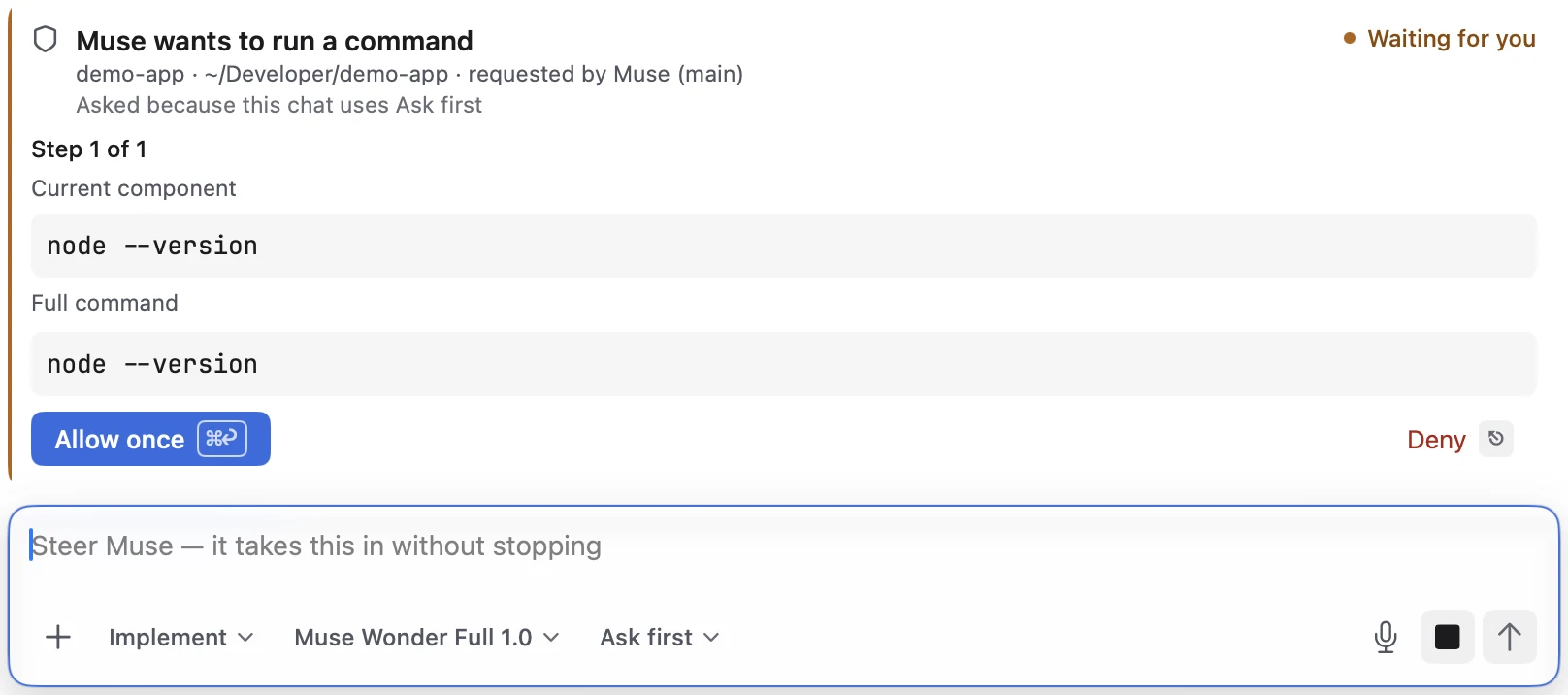
When a command needs your approval, you see the whole command, invisible characters included, before you allow it.
CommandReturn Allow onceEscape Deny

Before a file changes
In Plan mode nothing is edited until you approve the plan.
Before you keep it
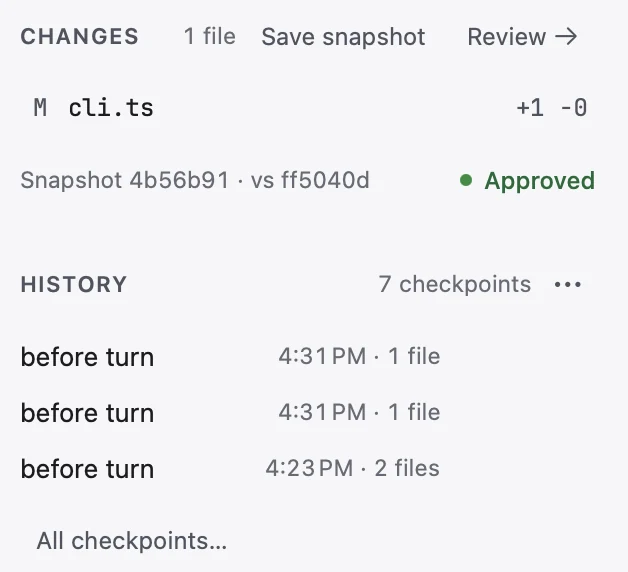
Approve the exact snapshot you reviewed. If a file changes afterwards, the approval no longer holds.
ShiftCommandReturn Approve this snapshot

Mid-turn
Type a new instruction and Muse takes it without starting over, or stop the turn with CommandPeriod
After the fact
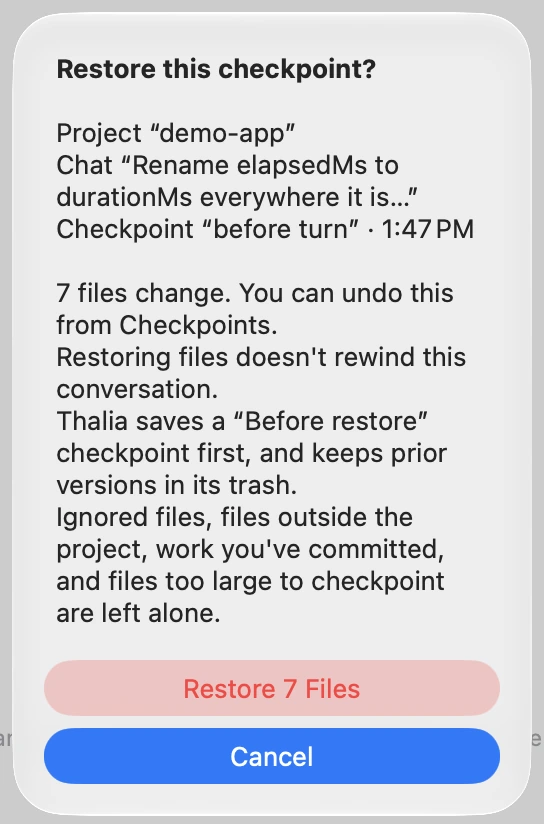
Roll back to a checkpoint, with a preview of which files come back first. Checkpoints help you undo; they aren’t a backup.
Made for the Mac
Written in Swift and SwiftUI for macOS 27. It opens in a moment even with a long chat history, and stays light while long replies stream. Keyboard first, with a command bar on CommandK Connector keys you enter live in your Keychain. Open a pull request with the GitHub CLI, connect MCP servers with a browser sign-in, or talk the job through with voice mode. The app sends us no analytics and no telemetry.
Build and run your Xcode projects without leaving Thalia: follow the build log and console in the output dock, pick a scheme and press Run, and see SwiftUI previews and the Simulator beside your chat.
7 releases since 27 September
- Build and run Xcode projects beside your chat, start chats without a project, and organise your work in a much lighter, faster app.
- Thalia, redesigned: a calmer, faster window, Cmd-K to jump anywhere, an Inbox for what needs you, and a Review workspace built for shipping.
- Shell commands in the composer, workflow and helper-agent controls, clearer Muse Code usage, and safer permissions and recovery.
- Your Muse Code plan’s models, including Muse Wonder, in the model picker; effort choices that match each model; smoother review and plan approval; and connector and voice fixes.
- A safer, steadier Thalia: clearer plan and approval controls, files that reach Muse, and more reliable review, connectors and voice.
- A small patch so connector sign-in actually finishes.
- For Apple Silicon Macs running macOS 27.
A note from us
We built Thalia because we wanted to give Muse real work and still know exactly what it did. It’s an independent app, it’s free, and it gets better every week or two. If something is wrong or missing, tell us, and it will likely be in the next release.

Give Muse its next job
Download ThaliaFree for Apple Silicon Macs on macOS 27. Meta sets any Muse Code subscription or usage charges. Intel Macs are not supported, and Windows and Linux versions have not been announced.
Or with Homebrew:
brew install --cask mabry-ventures/tap/thalia