
Give every task its own conversation.
Open a folder on your Mac as a project and start a chat for each feature or fix. Name and pin chats, filter the sidebar, and find your drafts and history where you left them after a relaunch.
What Thalia does
Thalia is a native Mac app for agentic coding with Meta’s Muse Code CLI. Open a project, plan the work, watch it happen, review the diff and ship the branch.
The capabilities below are in the current development build. Thalia is coming soon; launch details may change.
Free to startApple SiliconmacOS 26 or 27Bring your own Muse access
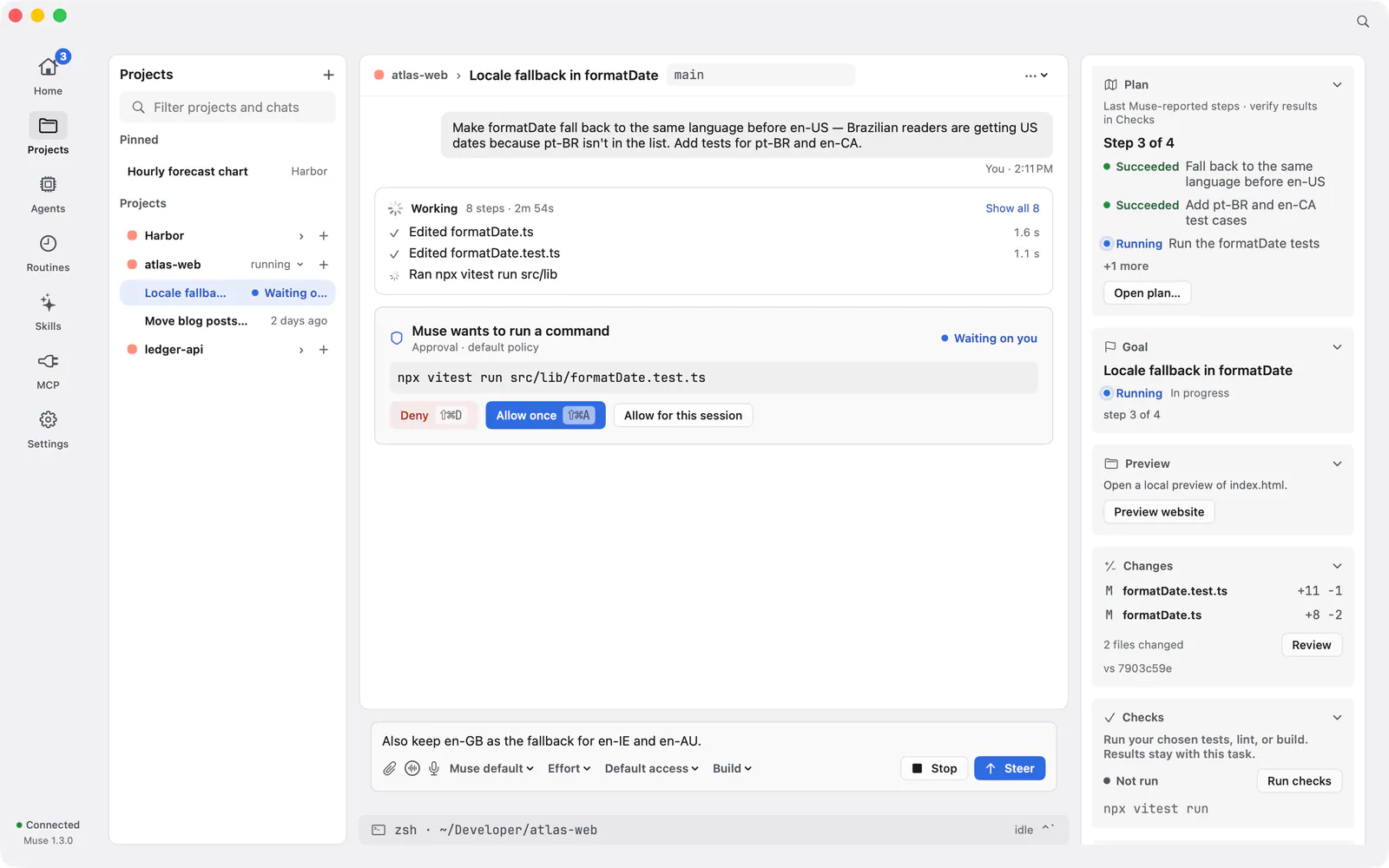
The real Thalia app, running a sample workspace.
01
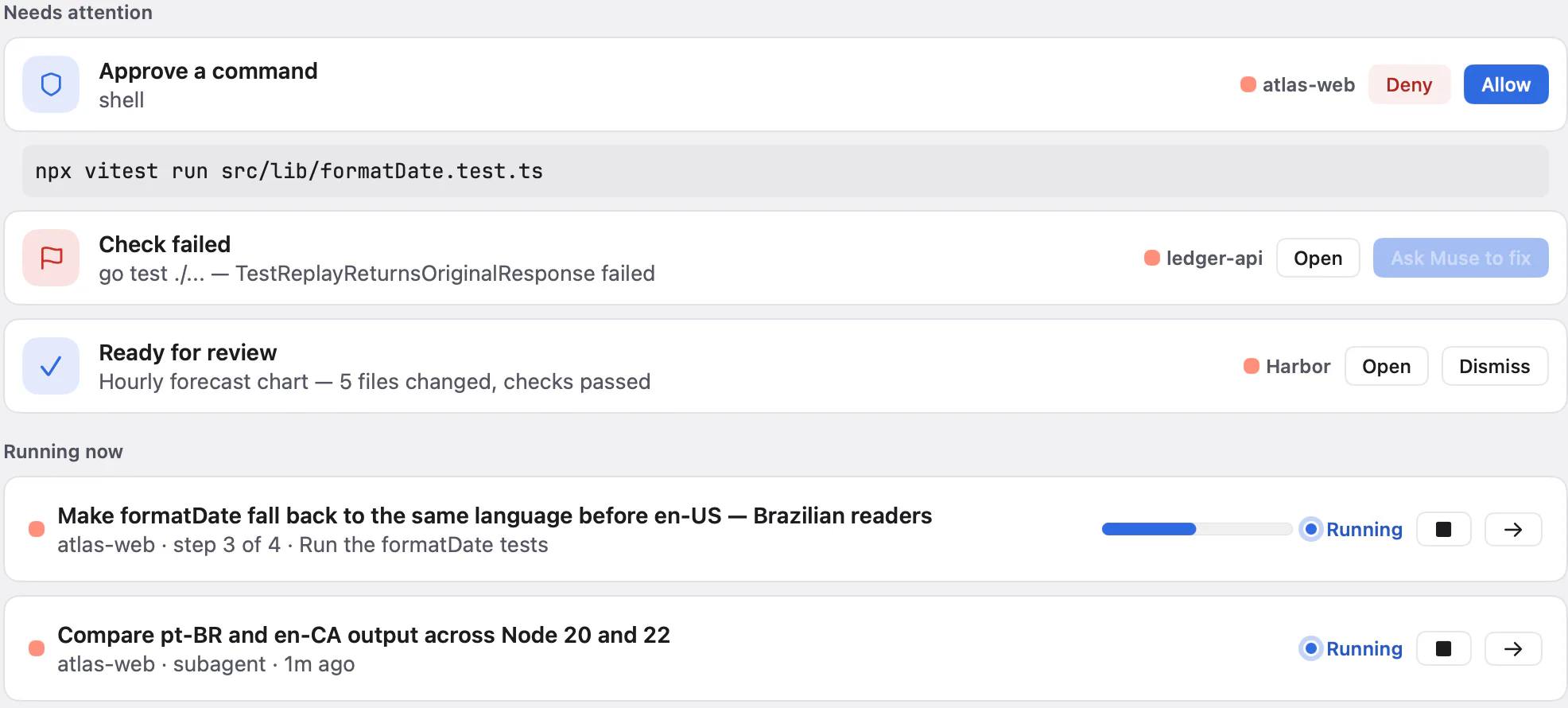
Where the work lives: one project per folder, one chat per task, and one place that shows what needs you.
Open a folder on your Mac as a project and start a chat for each feature or fix. Name and pin chats, filter the sidebar, and find your drafts and history where you left them after a relaunch.
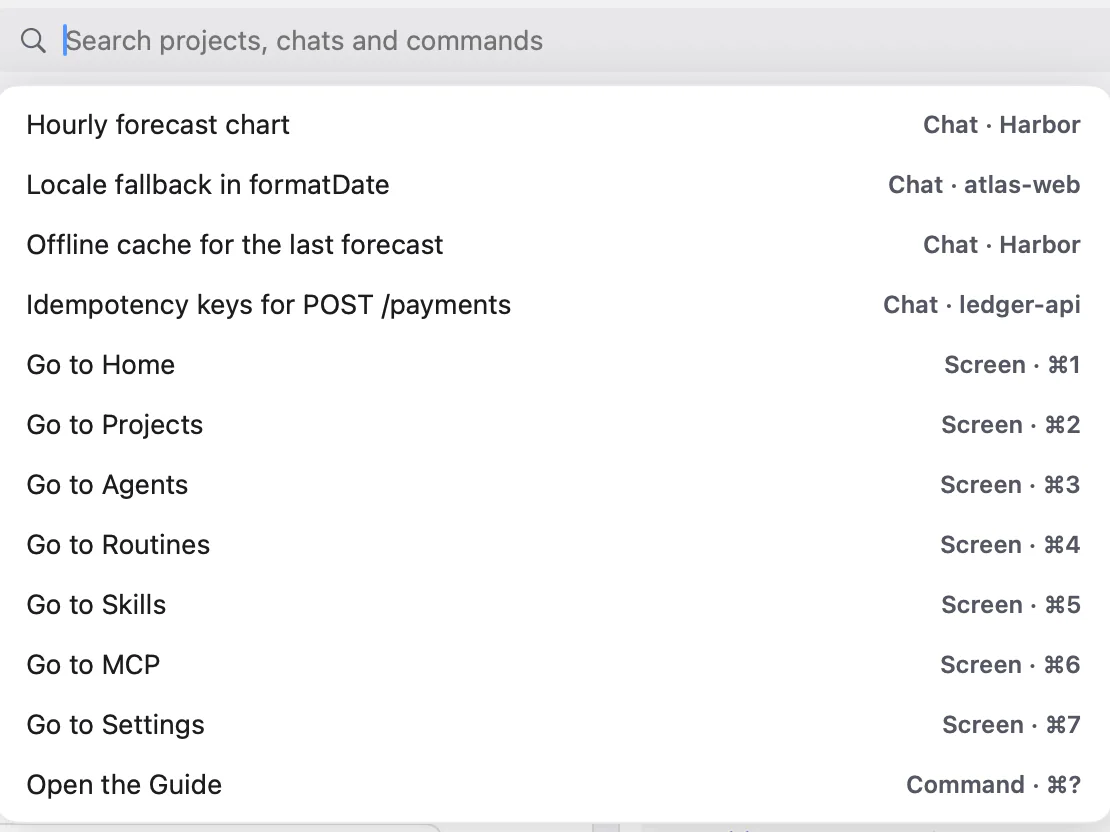
The command bar runs any command and finds settings, guide topics and past messages.
Approvals waiting on you, plans ready to review, failed checks and running work appear in one place. Each item opens the chat it came from.
An empty chat offers starter tasks. They fill the composer and wait for you to send.
Give a project an emoji and a colour.
02
Think before touching files.
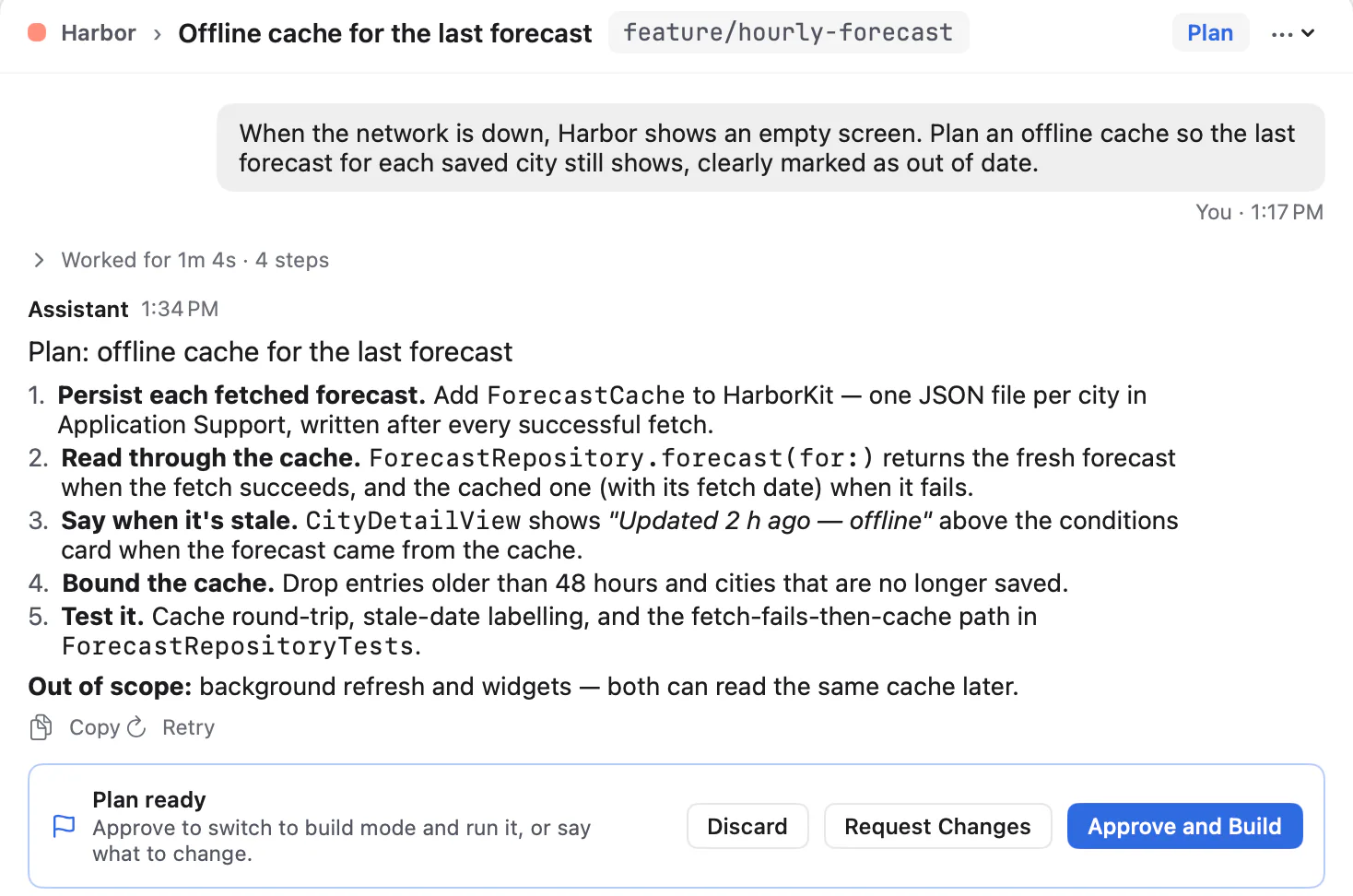
Switch the composer to Plan and Muse works out the approach without editing your project. Read the plan, then approve it to build, ask for changes, or discard it.
If an approved plan can’t start (the connection drops, or the folder moved), it stays in the chat with Retry and Inspect.
Open a task with /task and its plan, changes, checks and checkpoints collect in the inspector. Set a goal, and mark it accepted when the work is done.
Set the model and reasoning effort per chat or per project, from the models your Muse account offers.
Models from your Muse account
03
You stay in the loop while Muse works.
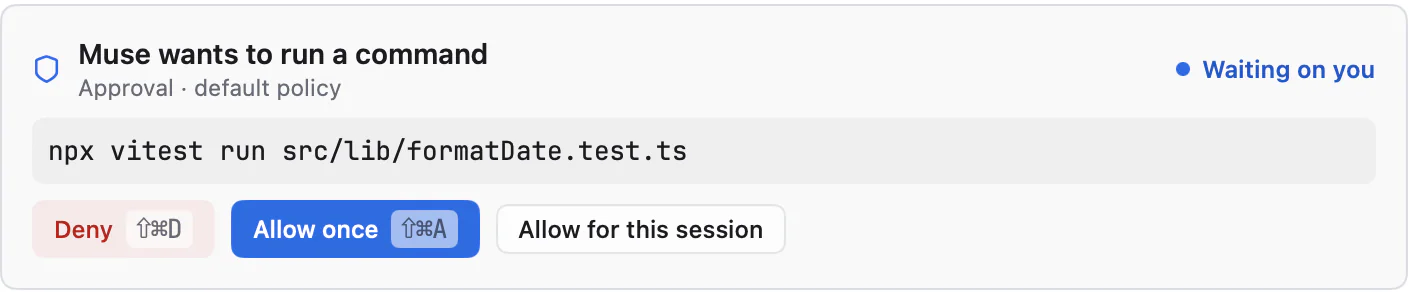
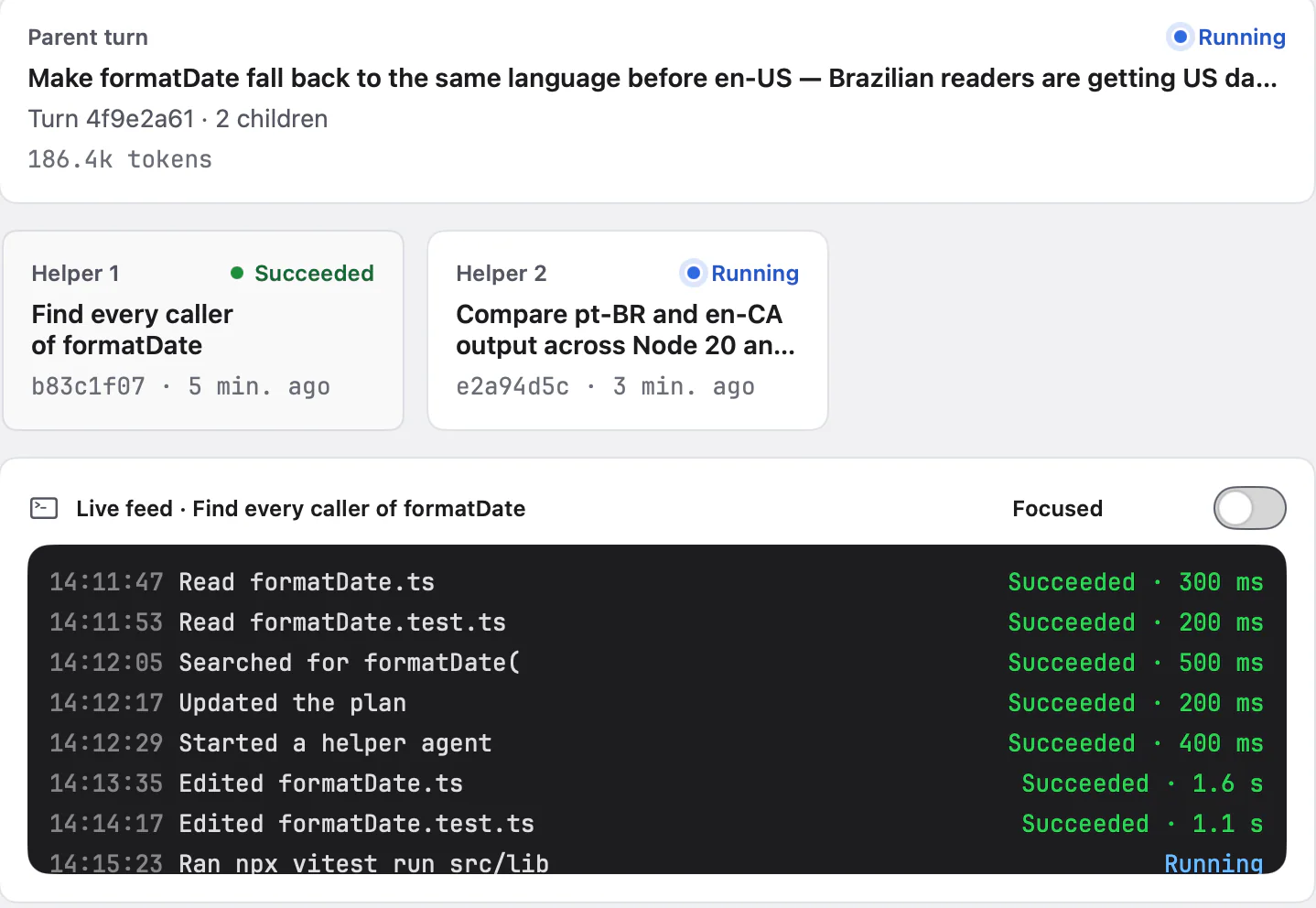
A turn lists its steps while it works. Expand any step for detail, or collapse the whole turn when it’s done.
When Muse asks to run something, Thalia shows the whole command, with hidden characters made visible, before Allow is available. Decide in the chat, from Home, or with ⇧⌘A and ⇧⌘D.
Send a new instruction while Muse is working, stop the turn with ⇧⌘., or choose an answer when Muse asks you a question. Edit and resend an earlier request, or retry a reply.
When Muse hands part of a task to helper agents, the Agents screen shows each one: what it’s doing, what it returned, and the worktree it works in. You can message a helper or stop it.
When Muse delegates
Sessions shows other Muse sessions working in the same project, a shared task board, and messages between sessions. Claims on the board are advisory; they don’t lock files.
Several Muse CLI sessions in one project
04
Inspect the change before it lands, and keep a way back.
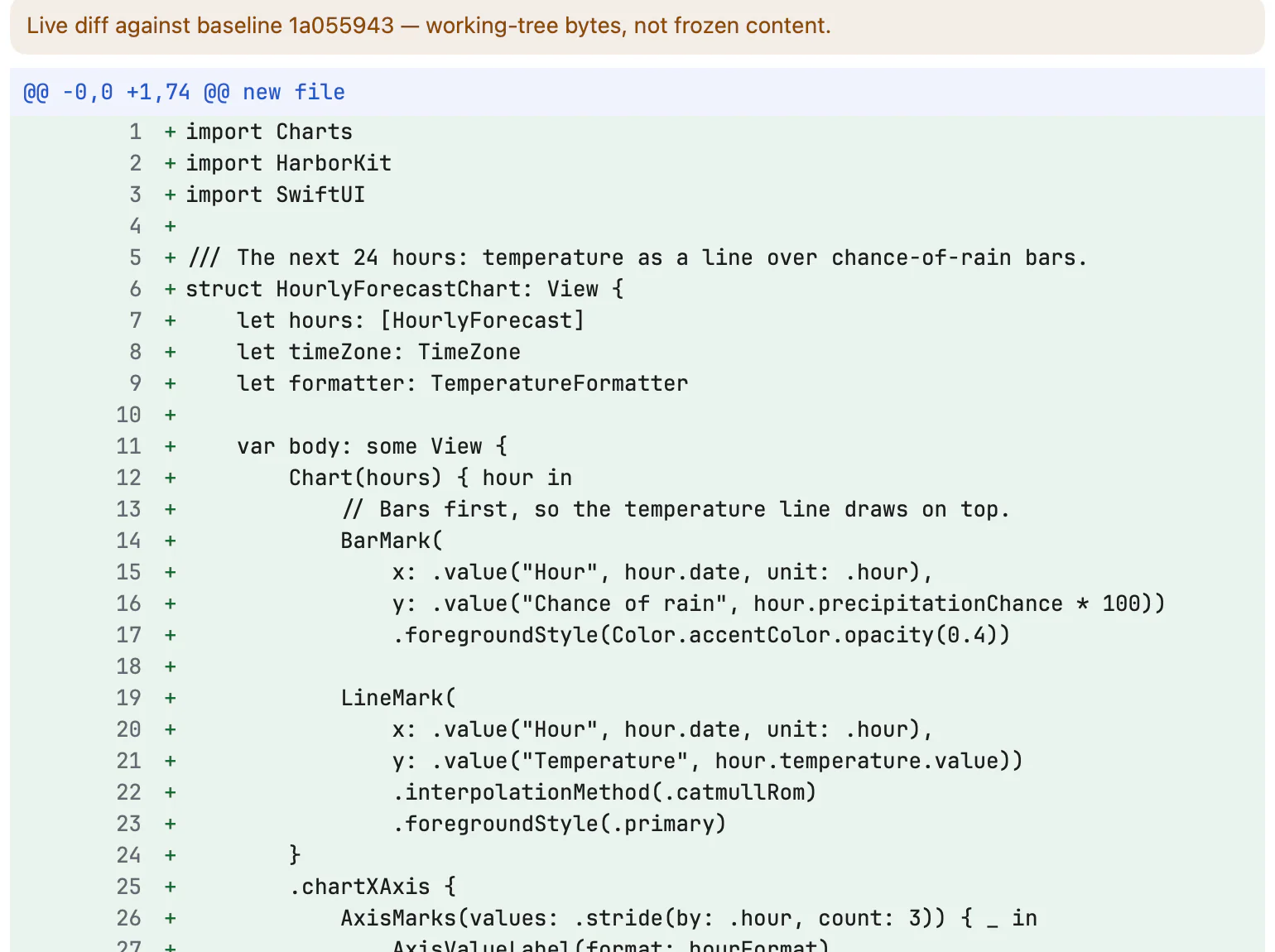
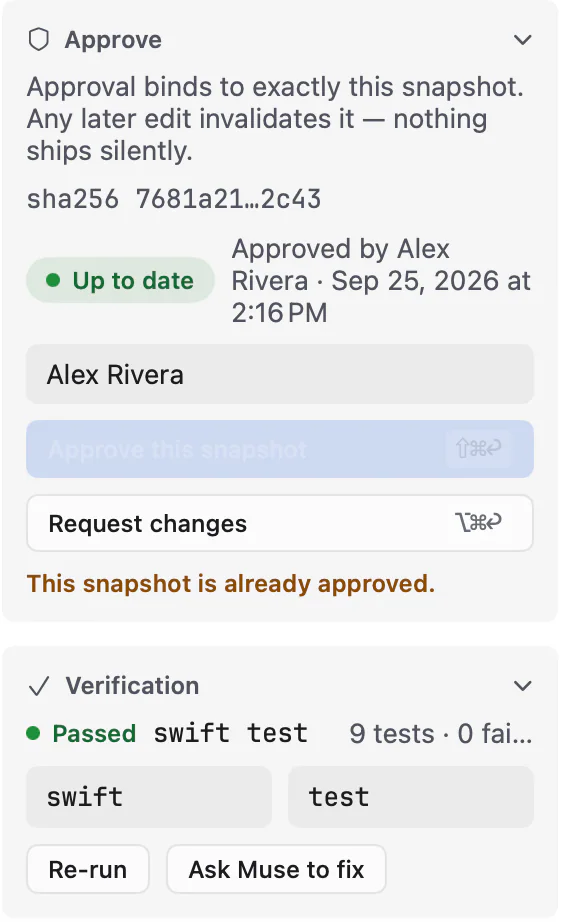
Changes lists every file that differs from your last commit, and Review shows each file’s diff. When you approve, Thalia records the exact snapshot. If a file changes afterward, the approval is withdrawn until you review again.
In Git projects
Write what should change and send it to the chat the work came from (⌥⌘↩).
Save your project’s verification command once, run it with ⇧⌘T, and see pass or fail beside the changes. The result is marked stale when files change. When a check fails, ask Muse to fix it with the failure attached.
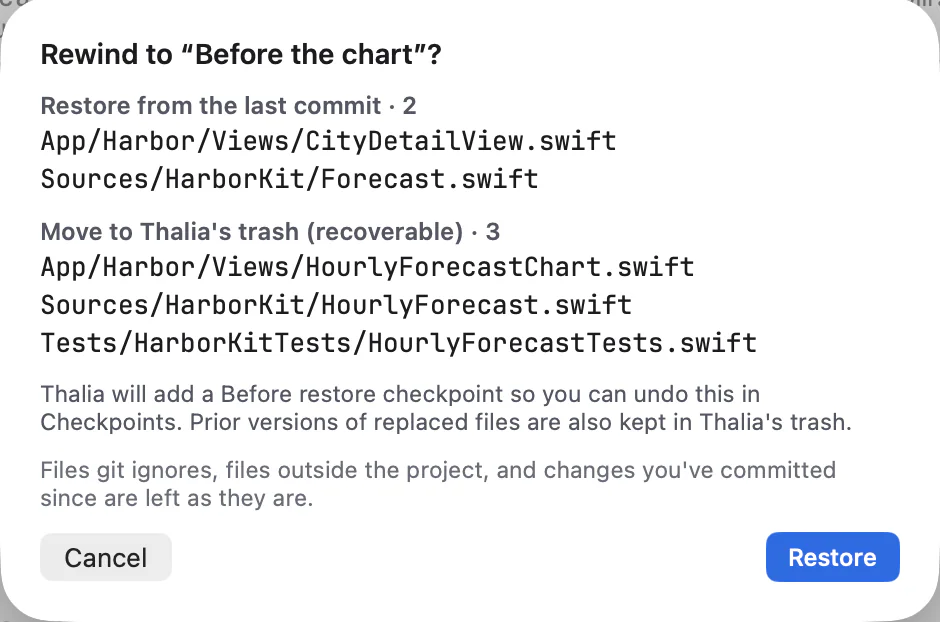
Capture a checkpoint. Before a restore writes anything, Thalia shows which files it will put back and which it will move to Thalia’s trash. It also saves a checkpoint of the current files first, so you can undo the rewind.
In Git projects
Open a preview inside Thalia. The preview runs from an isolated copy, not your project folder.
Static sites with index.html at the root
Muse’s output can be wrong. Review changes before you rely on them, and keep backups: checkpoints help you undo, but they aren’t a backup.
05
Ship it from the same window.
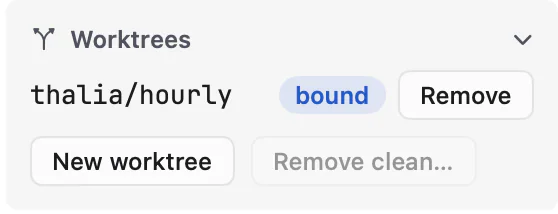
Create a Git worktree from the Agents screen, open a chat in it, and remove it when you’re done.
In Git projects
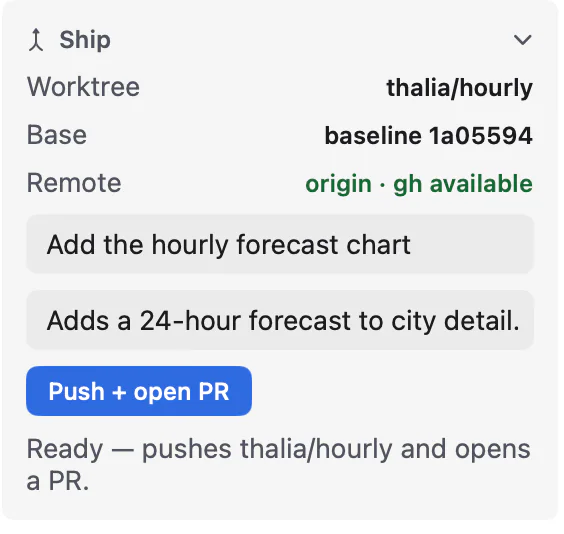
From Review, write the pull request’s title and description, then choose Push + open PR. Thalia works through the GitHub CLI.
GitHub remoteGitHub CLI (gh), signed in
06
The command line stays close by.
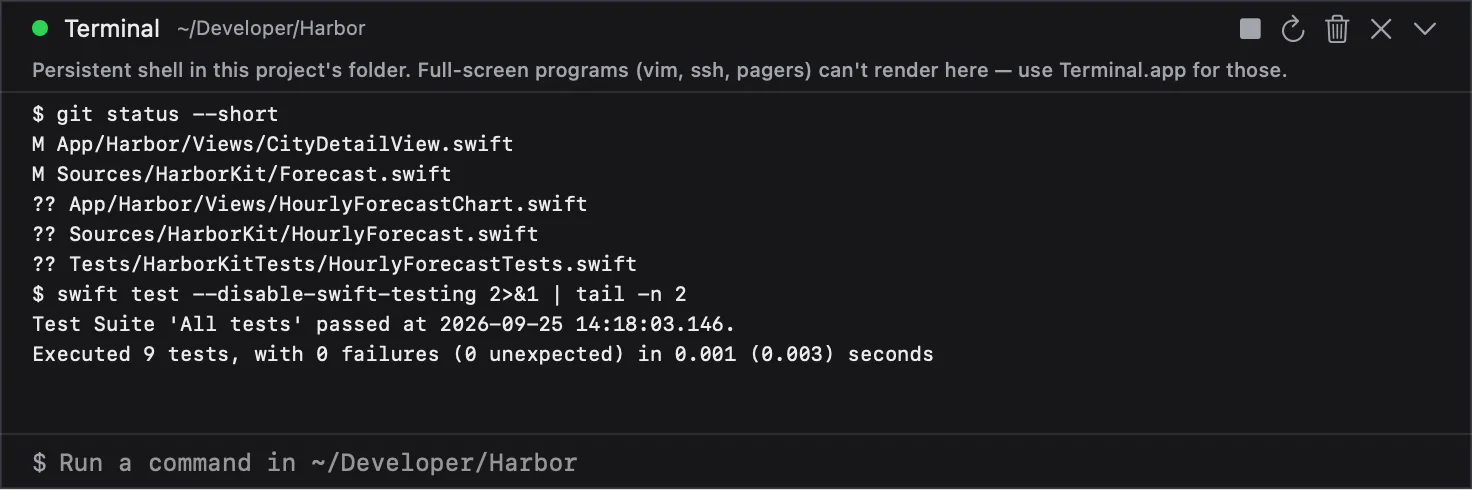
Open the terminal under any chat (⌃`) to run commands in the project folder. For full-screen tools like editors and pagers, Open Terminal Here opens the folder in Terminal.
07
Instructions, memory, commands and references.
Keep notes for each project, and a personal memory that Muse shares with the CLI. Both go with each turn, and you can switch either off.
Turn on project rules in Settings, and Muse reads your repository’s rules file, such as THALIA.md or AGENTS.md, from the project root on every turn.
Off by default: turn on in Settings
Import Markdown memory from another coding agent into your personal memory or a project’s notes.
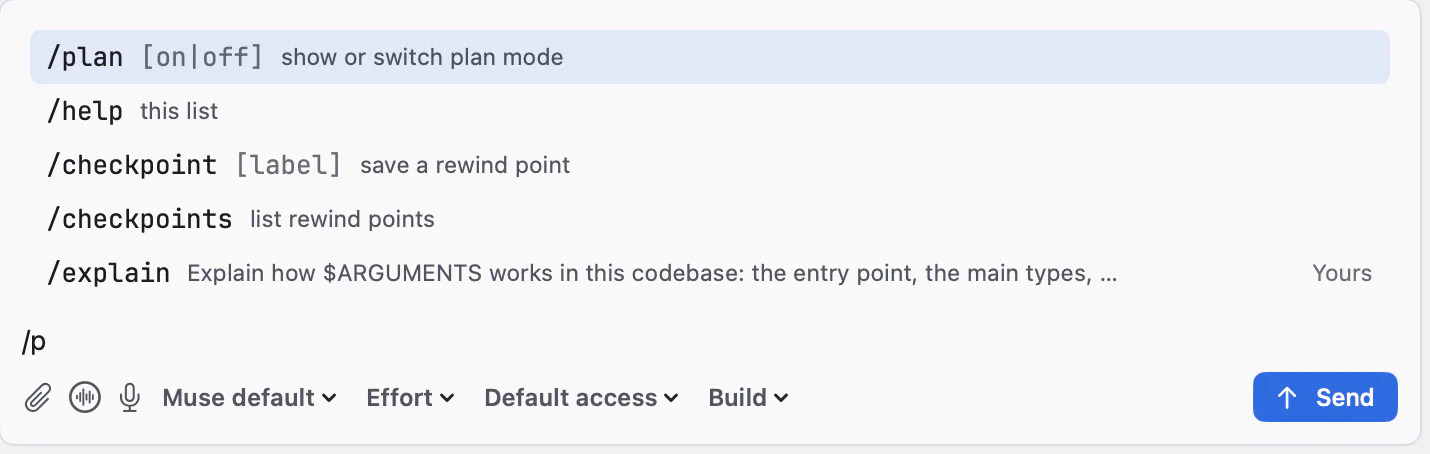
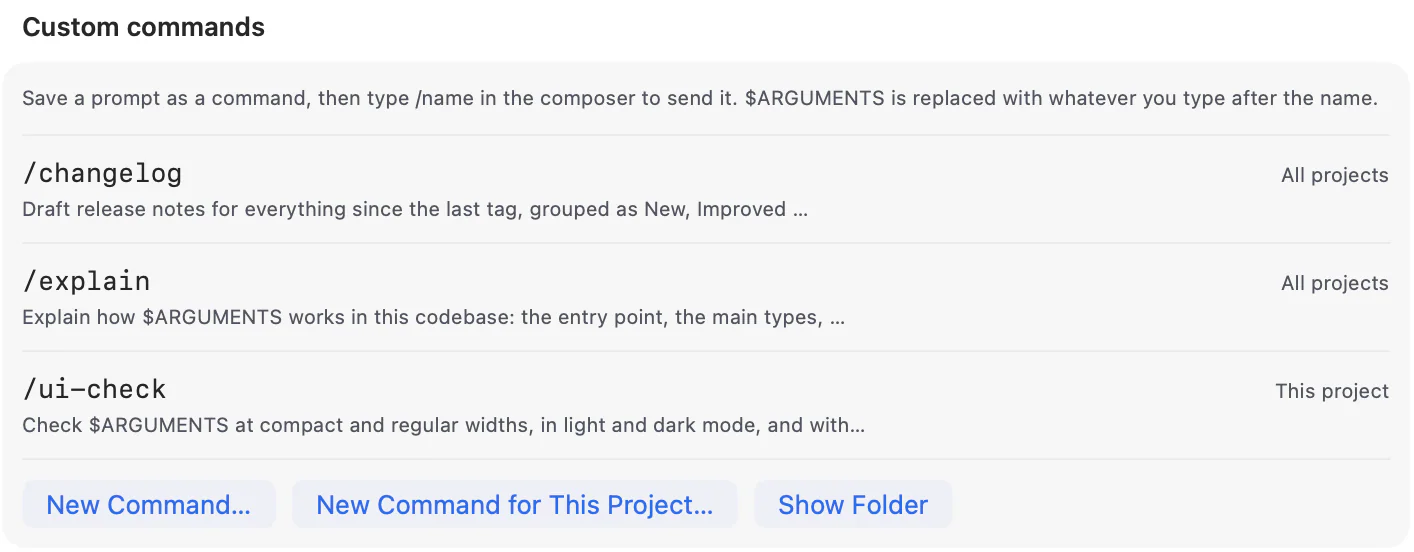
Save a prompt as a slash command, for yourself or for a project. $ARGUMENTS fills in whatever you type after the name. Built-in commands cover plan mode, models, effort and checkpoints.
Attach files to a message, or clip a web page’s text into your next request with /fetch.
08
Repeatable work, on your terms.
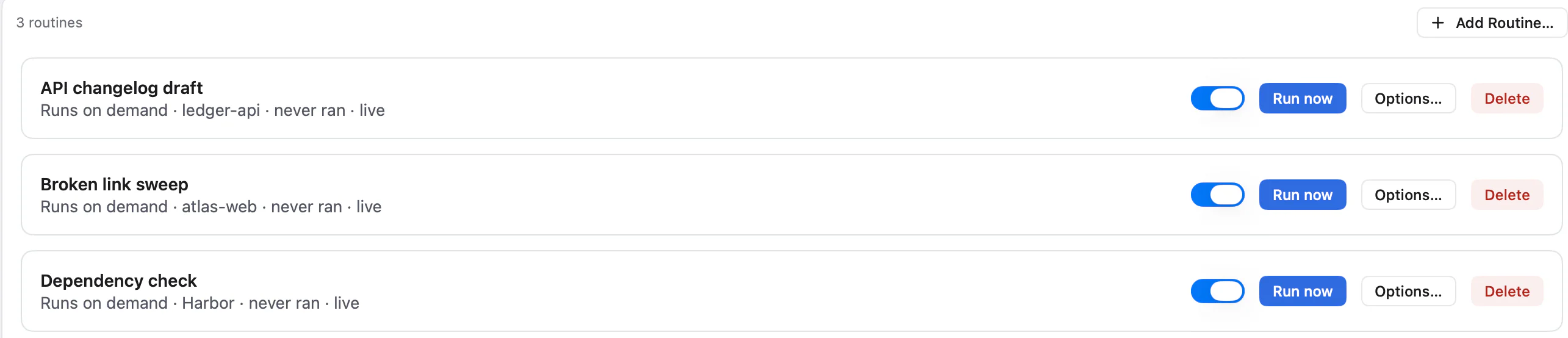
Save a prompt against a project and run it when you need it, in a chat or headless in the background. Thalia can notify you when it finishes.
Runs on demand
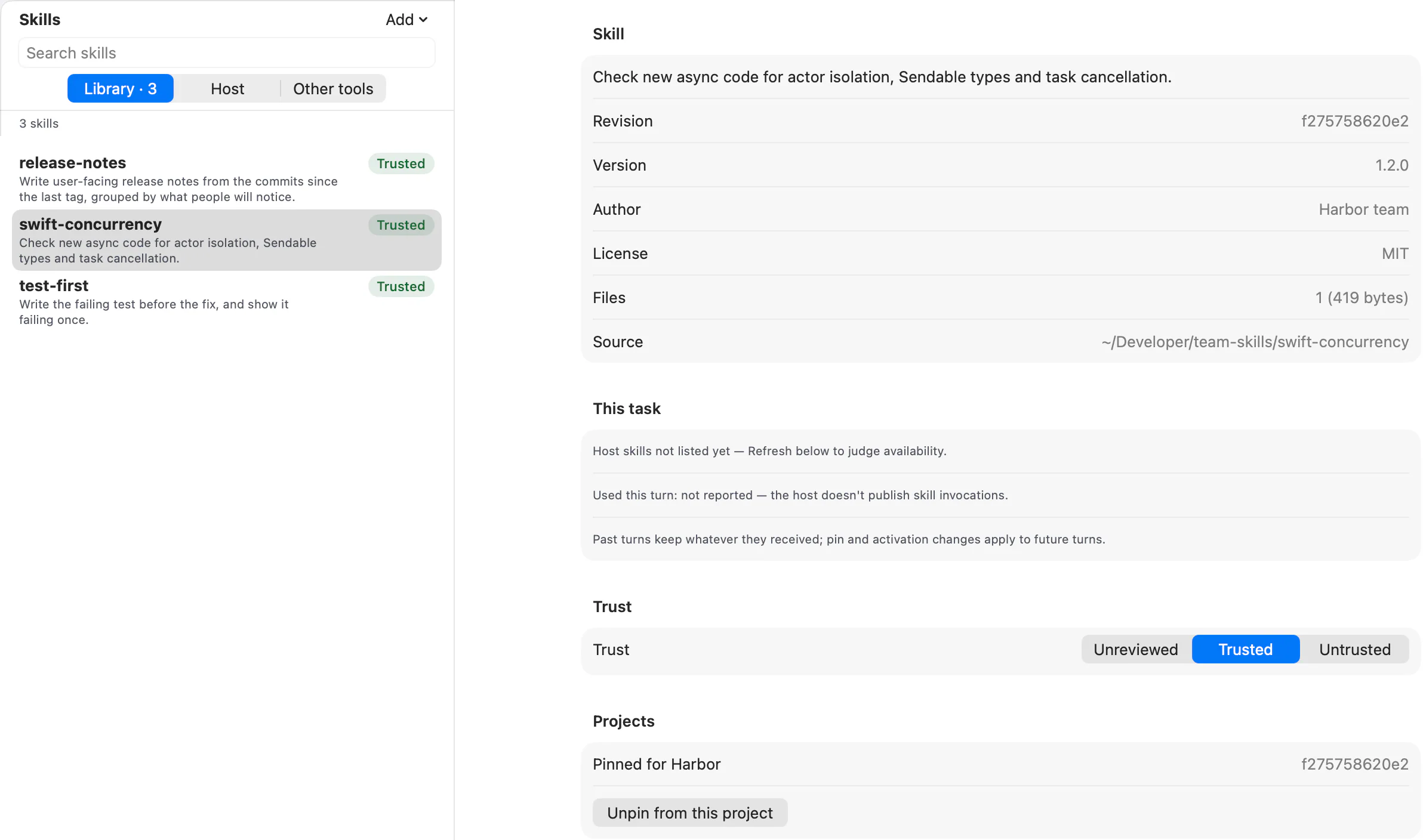
Create skills, or import them from a folder or from other agent tools on your Mac. Mark each revision trusted or not, and pin a revision to a project.
09
The services you already use.
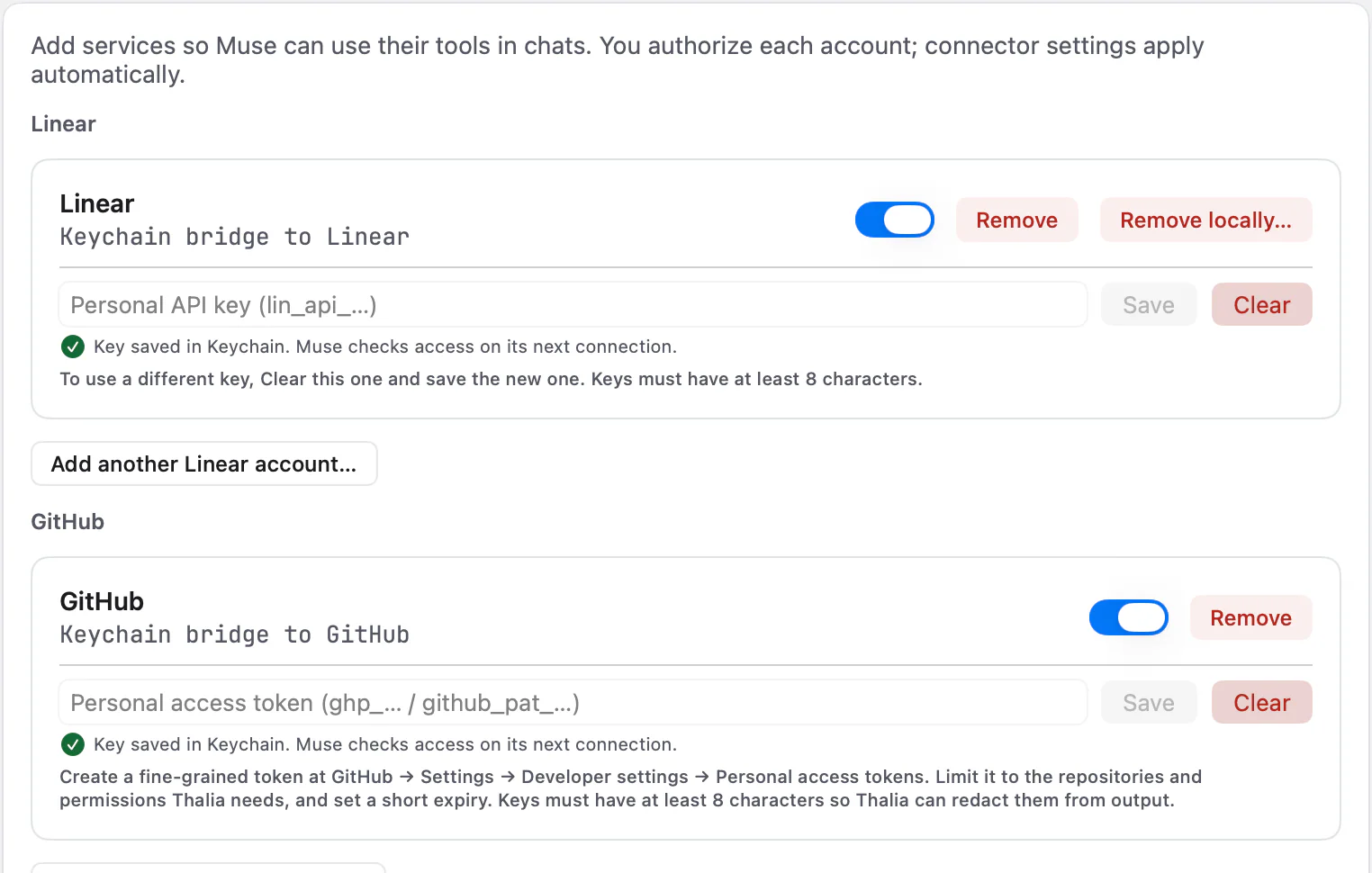
Guided presets for GitHub, Linear, Cloudflare, Sentry and GitLab walk you through setup.
Your own account and authorization for each service
Add a custom connector over streamable HTTP, or as a local command, with OAuth sign-in where the server supports it.
Depends on the server
Keys you enter for the guided GitHub and Linear connectors, and credentials for custom connectors, are stored in the macOS Keychain. Thalia won’t send a key over plain HTTP unless the server is on your Mac.
A connector that’s on but not signed in is skipped and marked, and Home counts it.
Add a second account for a service, each with its own named key.
10
Why it feels like a Mac app.
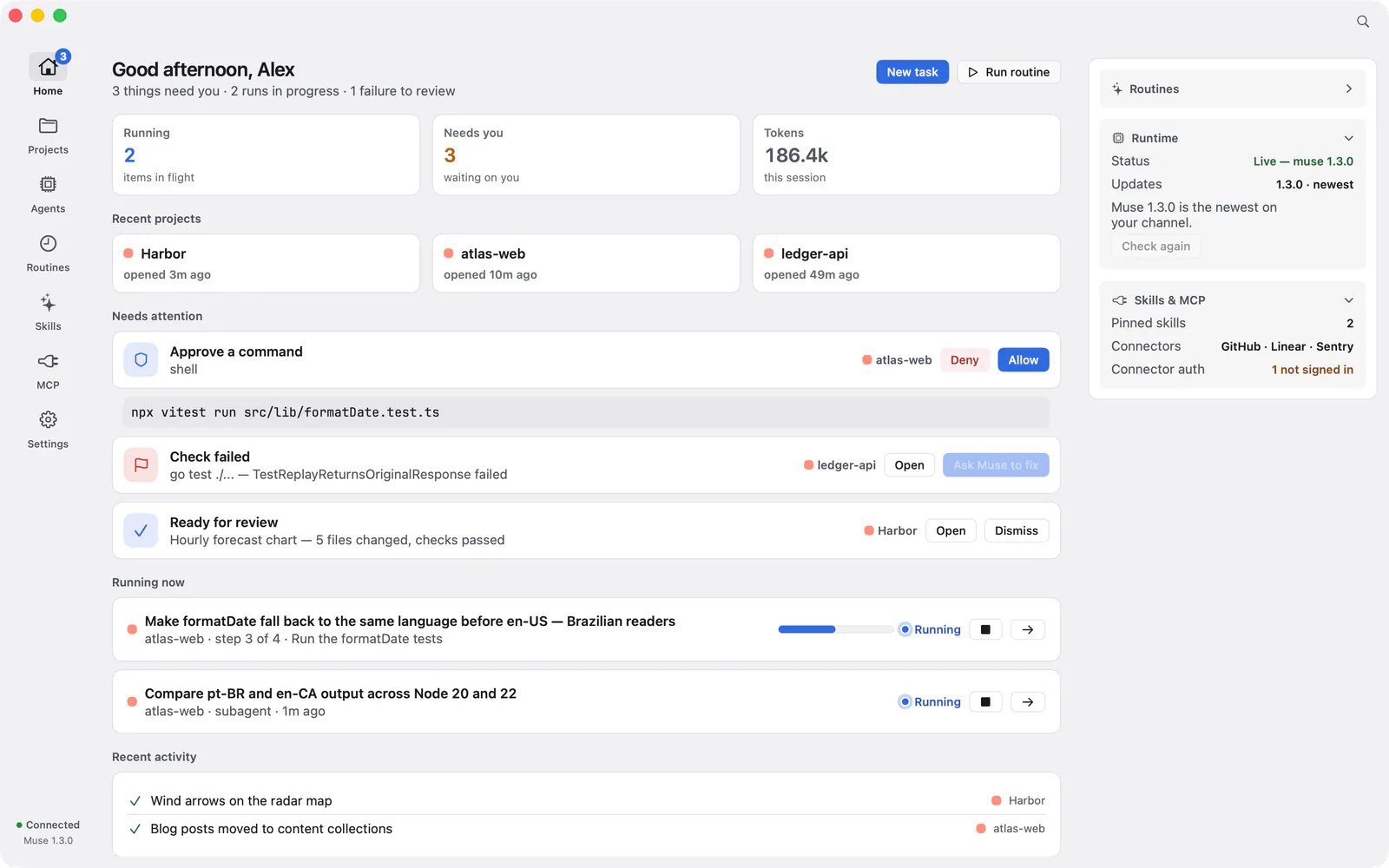
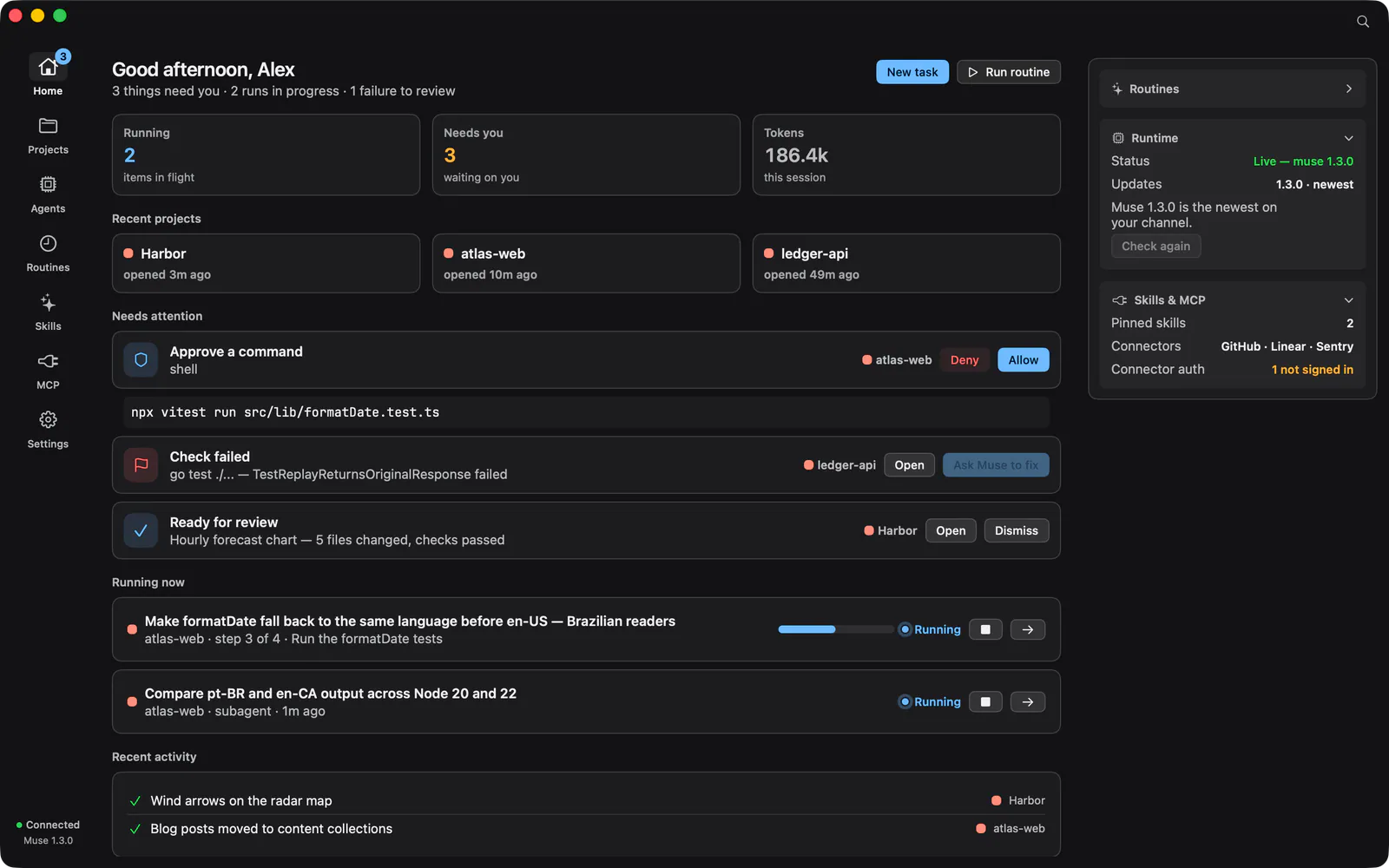
Thalia is written in Swift and SwiftUI for macOS 26 and 27 on Apple Silicon.
The whole loop has menus and shortcuts, and Settings → Keyboard lists them all.
Choose an appearance, or let Thalia follow macOS.
Show or hide the sidebar, inspector and terminal, and reset the layout in one step.
A searchable guide explains each screen and term, and its keyboard section is generated from the app’s own commands.
11
Where your data goes, and what you need.
Connector keys you enter in Thalia are kept in the macOS Keychain.
Thalia hands it your messages and the files the agent reads. If you use an API key, the CLI stores it.
Projects, chats, checkpoints and settings are stored on your Mac. Thalia sends Mabry Ventures no analytics, telemetry or usage data.
When you chat, your messages and the files the agent reads go through the Muse Code CLI to Meta, under your Muse account and Meta’s terms. Sign in with your Meta account or a Muse API key; the key is handed to the CLI, which stores it.
If the Muse CLI is missing, setup installs it from Meta, checking the download first. Then it signs you in and confirms a live reply before you start. Thalia never updates Muse in the middle of a turn, and it asks before running Muse’s own update.
A diagnostics bundle is made only on request. You see it redacted before saving, and it leaves your Mac only if you send it.
12
Thalia is free to start. You need your own Meta Muse access; Meta sets any Muse subscription or usage charges.
gh), installed and signed in.Intel Macs are not supported, and Windows and Linux versions have not been announced.
Thalia is an independent Mabry Ventures product built to work with Meta Muse. It is not made or endorsed by Meta. See how Thalia handles your data.